
At a glance: Integrate ZendeskConnect SDK into iOS/Android apps developed with Adobe AIR development platform to measure installs, in-app events, media sources, and more.
Plugin information
Supported platforms:
- Android
- iOS 6+
Based on:
- iOS ZendeskConnect SDK V6.0.3
- Android ZendeskConnect SDK V5.4.1
Installation and implementation
Installation
Download the ZendeskConnectAIRExtension.ane file from the bin folder Add the ANE to your project and make sure the IDE is marked to package it.
If the following was not added automatically, add it to the APP_NAME-app.xml:
<extensions>
  <extensionID>com.appsflyer.adobeair</extensionID>
</extensions>
Notes for Android apps
-
In the ZendeskConnect dashboard you will need to add "air." prefix to the package name as this is added automatically by Air. For example - an app with the package name "com.test.android", should set the app id in the ZendeskConnect Dashboard as "air.com.test.android".
-
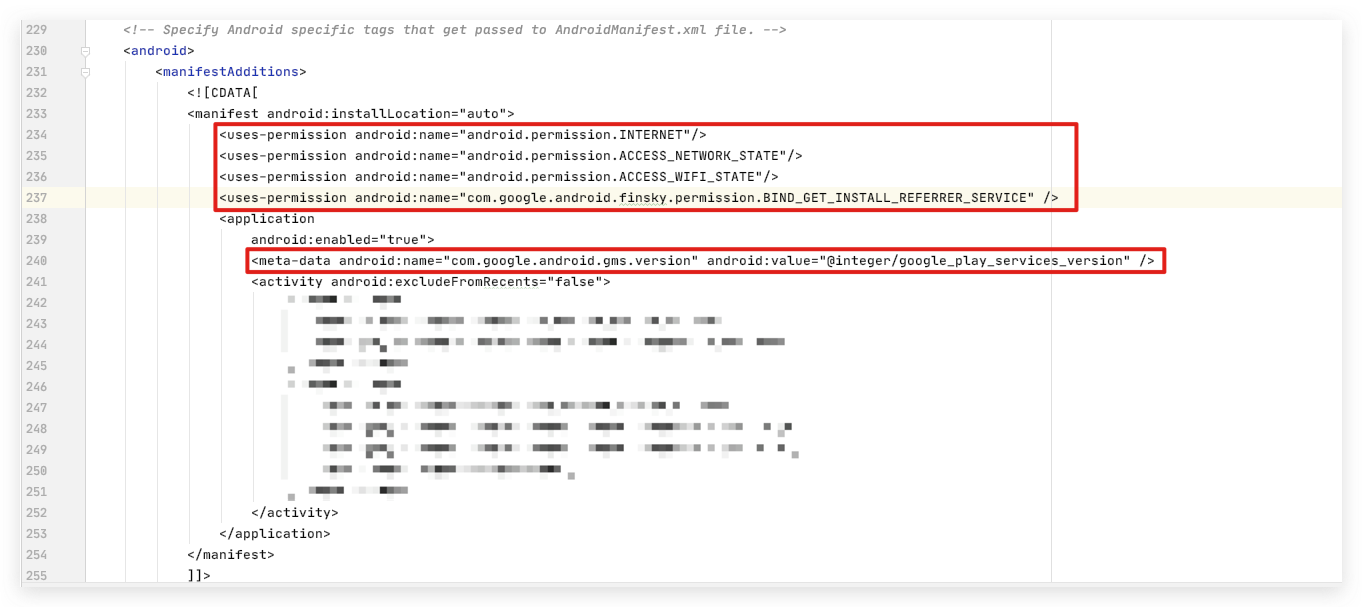
Add the following permissions to Android Manifest (in the app description
APP_NAME-app.xml):<uses-permission android:name="android.permission.INTERNET"/> <uses-permission android:name="android.permission.ACCESS_NETWORK_STATE"/> <uses-permission android:name="android.permission.ACCESS_WIFI_STATE"/> <uses-permission android:name="com.google.android.finsky.permission.BIND_GET_INSTALL_REFERRER_SERVICE" /> - Add the following metatag to Android Manifest within the application tag (in the app description
APP_NAME-app.xml):
meta-data android:name="com.google.android.gms.version" android:value="@integer/google_play_services_version" />
As a result, you should see your Manifest like this:
Important: Due to some limitations in the ADT, after the APK is built, it is missing some important files.
To add those files (with the help of automated script):
- Place into single directory of your choice:
- APK file
- Keystore that was used to sign the APK
- af_apk_fix.sh script
- Run
./af_apk_fix.shand enter requested info when prompted.
Here is what the script is doing. In case of any issues, you can perform those steps manually:
-
Decode the APK using apktool. This will create app_name folder.
apktool d app_name.apk -
Download the ZendeskConnect SDK jar/aar of the same version that was used in the APK.
-
Extract files
a-andb-from the jar (by renaming jar into a zip) and place them into the folder with the decompiled apk toapp_name/unknown/com/appsflyer/internal -
Edit
apktool.ymlby adding these lines underunknownFiles:com/appsflyer/internal/b-: '0' com/appsflyer/internal/a-: '0'
See sample screenshot that follows.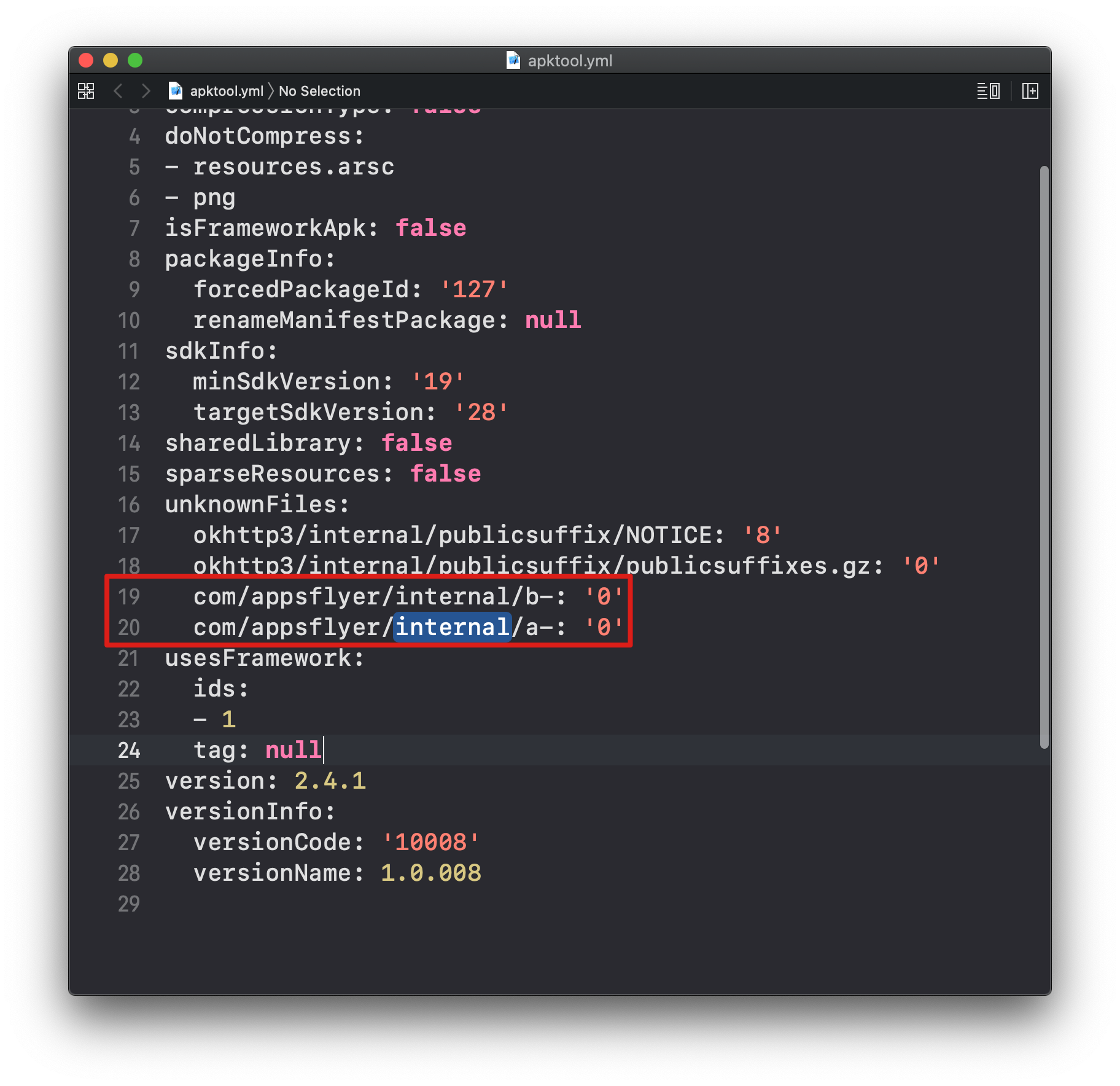
-
Build the APK.back (will appear under
app_name/distfolder).apktool b app -
Sign the APK.
jarsigner -verbose -sigalg SHA1withRSA -digestalg SHA1 -keystore myKeystore.keystore app_name/dist/app_name.apk myKey -
Zipalign the apk (to be able to upload to Google Play)
zipalign -f -v 4 app_name/dist/app_name.apk app_name/dist/zipalign_app_name.apk -
Verify zipalignment
zipalign -c -v 4 app_name/dist/zipalign_app_name.apk -
Your apk
zipalign_app_name.apkis ready to use!
Implementation
Import the ZendeskConnect Extension into your project:
import ZendeskConnectInterface;
Construct the ZendeskConnect interface:
private static var appsFlyer:ZendeskConnectInterface;
appsFlyer = new ZendeskConnectInterface();
[Optional] If you want to perform deep linking or access ZendeskConnect conversion data from the application, register Conversion Listener:
appsFlyer.registerConversionListener();
Set the Developer key and iOS app ID (optional) and Initialise the SDK:
appsFlyer.appsFlyer.init("DevKey", "iOSAppID");
Initialize session logging (automatically log app launches and background-to-foreground transitions) with DevKey and iOS app ID (optional):
appsFlyer.start("DevKey", "iOSAppID");Deep linking
In order to receive the relevant ZendeskConnect information from the deep link used:
- Register the following event listeners:
appsFlyer.addEventListener(ZendeskConnectEvent.APP_OPEN_ATTRIBUTION, eventHandler); // success appsFlyer.addEventListener(ZendeskConnectEvent.ATTRIBUTION_FAILURE, eventHandler); // error - Handle the response in a corresponding event handler:
private function eventHandler(event:ZendeskConnectEvent):void {
	log("ZendeskConnect event: " + event.type + "; \nData: " + event.data);
}
Deferred deep linking
In order to receive the conversion data for the current install:
- Register the following event listeners:
appsFlyer.addEventListener(ZendeskConnectEvent.INSTALL_CONVERSATION_DATA_LOADED, eventHandler); // success appsFlyer.addEventListener(ZendeskConnectEvent.INSTALL_CONVERSATION_FAILED, eventHandler); //error - Handle the response in a corresponding event handler:
private function eventHandler(event:ZendeskConnectEvent):void {
	log("ZendeskConnect event: " + event.type + "; \nData: " + event.data);
}
IMEI and Android ID collection (Android only)
Important! Apps with Google play services should avoid IMEI collection as this is in violation of the Google Play policy.
By default, IMEI and Android ID are not collected by the SDK if the OS version is higher than KitKat (4.4) and the device contains Google Play Services.
To explicitly send these IDs to ZendeskConnect, developers can use the following APIs and place them before initializing the SDK.
If the app does NOT contain Google Play Services, the IMEI and Android ID are collected by the SDK.
Enable/disable IMEI collection (disabled by default)
appsFlyer.setCollectIMEI(bool);
Manually set IMEI Data
appsFlyer.setImeiData("imeiString");
Enable/disable Android ID collection (disabled by default)
appsFlyer.setCollectAndroidID(bool);
Manually set Android ID data
appsFlyer.setAndroidIdData("AndroidIDString");API reference
| Name | Description | Signature/example |
|---|---|---|
|
logEvent |
Log in-app events. |
|
| start |
Send a session logging event, regardless of app state. |
|
| setAppUserId |
Get the user ID as used in the app. |
|
| setUserEmails |
Get user email. |
|
| setCurrency |
Set the currency for logging revenue events, for example, USD. |
|
| stop |
Used when you want want to shut down all SDK logging due to legal and privacy compliance. Once this API is invoked, our SDK no longer communicates with our servers. |
|
| setDebug |
Enable/disable ZendeskConnect debug logs. Important: Do not release the app to app stores with debug logs enabled. |
|
Comments
0 comments
Article is closed for comments.