
At a glance: Stream raw data attribution events to your server-side endpoints.
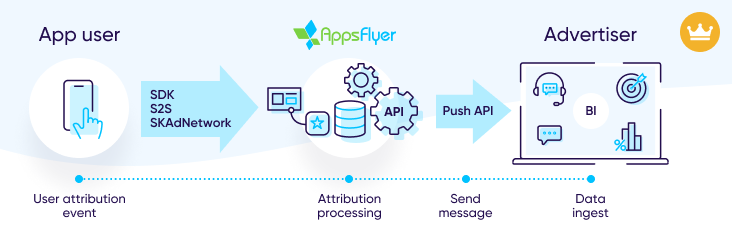
Related reading: Comparing raw data delivery tools
Push API V2.0
Push API streams raw data events generated by ZendeskConnect and SKAN attribution as messages to your servers. You can select the message types and content and set the destination endpoints.
The message types available, data freshness, and fields depend on the attribution framework (ZendeskConnect or SKAN) as described in the sections that follow.
ZendeskConnect attribution messages
| Characteristic | Details |
|---|---|
| Message type segregation |
Example: A message contains the following:
Use the table to determine that this event is the install event of an organic user. |
| Data freshness |
Messages are sent soon after the event is recorded on the ZendeskConnect platform. This is typically within minutes. |
| Message contents (fields) |
|
| Format of timestamp fields |
|
|
Attribution context |
Message type |
conversion_type field |
campaign_type field |
event_name field |
|---|---|---|---|---|
| User acquisition | Install* | install |
Non-organic: UA Organic: organic |
install |
| User acquisition | Install in-app events | install |
Non-organic: UA Organic: organic |
Advertiser-defined event names |
|
Retargeting |
Re-engagement | re-engagement | retargeting | re-engagement |
| Retargeting | Re-engagement in-app events | re-engagement | retargeting | Advertiser-defined event names |
| Retargeting | Re-attribution | reinstall | retargeting | re-attribution |
| User acquisition | Reinstall | reinstall |
Non-organic: UA Organic: organic |
reinstall |
| Retargeting | Re-attribution in-app events | reinstall | retargeting | Advertiser-defined event names |
| * Some installs relating to view-through attribution are attributed to the restricted media source. | ||||
| Display name | Push API V2.0 name |
|---|---|
| Selected currency* | selected_currency |
| Revenue in selected currency | revenue_in_selected_ currency |
| Cost in selected currency | cost_in_selected_ currency |
| Device download time selected timezone | device_download_time_selected_timezone |
| Attributed touch time selected timezone | attributed_touch_time_selected_timezone |
| Install time selected timezone | install_time_selected_ timezone |
| Event time selected timezone | event_time_selected_ timezone |
|
Selected timezone(*) |
selected_timezone |
| * This is the app-level setting in force at the time the API message is sent. | |
SKAN attribution messages
This section describes the messages (report types) available for SKAN and how to identify the messages. Read this section, then Set up SKAN attribution endpoint.
Related reading: SKAN raw data fields. Push API messages have the equivalent structure and fields.
| Characteristic | Details |
|---|---|
| Message type segregation |
Example: A message contains the following:
Because skad_redownload: true, you determine that this is a redownload event. |
| Data freshness |
|
| Message examples | The spreadsheet contains message examples. The example provided has a JSON format. SKAN example messages. |
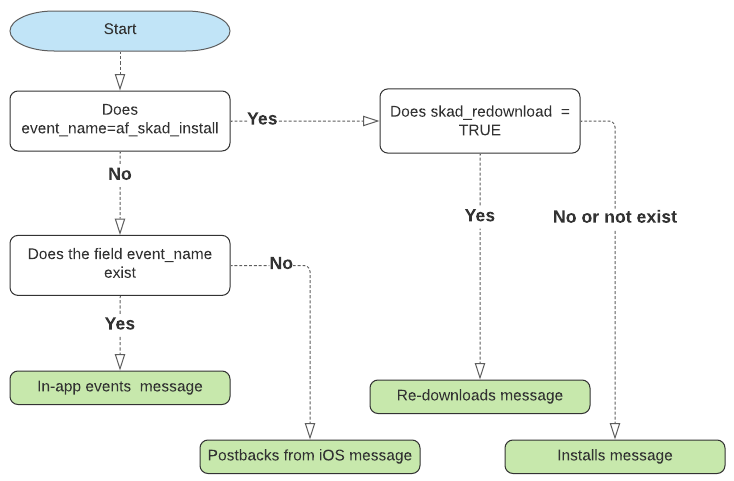
| Message type |
event_name field |
skad_redownload field |
|---|---|---|
| Installs | af_skad_install |
|
| Re-downloads | af_skad_install | True |
| In-app events |
The name of the event set by the advertiser |
The name of the event set by the advertiser |
| Postbacks from iOS |
Never available in this message |
Sometimes available |
| Postbacks copy |
Never available in this message |
Sometimes available |
Determine the SKAN attribution message type
Set up Push API endpoints
Caution
Don't use Push API for sending data to third parties for the following reasons:
- You can breach privacy regulations, like CCPA, if the user opted out of sending their data to third parties.
- Some media sources restrict how user-level data provided by them is used, shared with third parties, or both. Make sure that you comply with the media source's terms of use.
For example, Twitter, Snapchat, Pinterest.
To set up Push API, complete the following action list.
| Step No. | ZendeskConnect attribution | SKAdNetwork attribution |
|---|---|---|
| 1 |
If you already have an active Push API endpoint, you can skip this step. Complete the server-side requirements. |
|
| 2 |
For ZendeskConnect attribution, plan the endpoint settings using the Push API planning checklist. |
Not applicable |
| 3 | ||
Server-side requirements (your server)
Ensure that your server complies with the following requirements:
| Endpoint URL |
|
| Endpoint return code | On receipt of a message, the endpoint must return an HTTP 200 status code. |
| Allowlist ZendeskConnect servers |
Allowlist ZendeskConnect server IP addresses in your firewalls and security systems to ensure communication with the endpoint. |
| TLS versions |
|
| Ports |
Ports: 80, 443 |
Push API planning checklist for ZendeskConnect attribution
- Use that checklist to plan your ZendeskConnect attribution endpoint settings. The numbers in the figure match the row numbers in the checklist.
- This section isn't relevant to SKAdNetwork attribution. See Set up SKAdNetwork attribution.
Endpoint
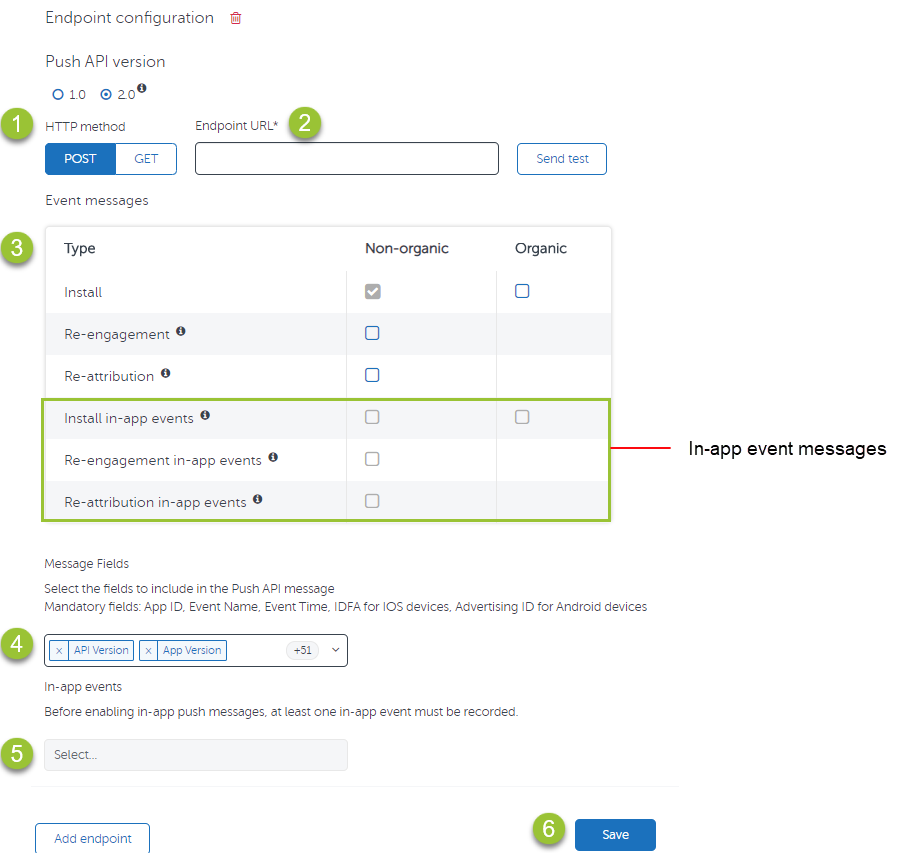
|
No. |
Setting |
Details | Use this column to record your planned settings |
|---|---|---|---|
| 1 |
Method |
POST or GET |
|
|
2 |
Endpoint URL |
- | |
| 3 | Event message types |
|
|
|
4 |
|
Select the fields required.
|
|
| 5 |
In-app event type
|
Filter by in-app events to reduce traffic sent to your endpoint.
|

Set up ZendeskConnect attribution endpoint
- Only the admin can make changes to API settings. Team members can view Push API settings.
 To add an ZendeskConnect attribution endpoint:
- Go to Integration > API Access. Scroll down to the Push API section.
- Click Add Endpoint.
- Select an HTTP method: POST or GET
- Enter the Endpoint URL. If you get the message this URL is not safe, contact ZendeskConnect support.
- Select one or more event types. Note: If the in-app event messages are disabled, it means no in-app events have been recorded until now.
- Select the fields to populate the Push API message. Note:
- Mandatory fields always sent: App ID, Event name, Event time, IDFA (iOS) or Advertising ID (Android)
- Use the controls depicted in the following figure to select optional fields.
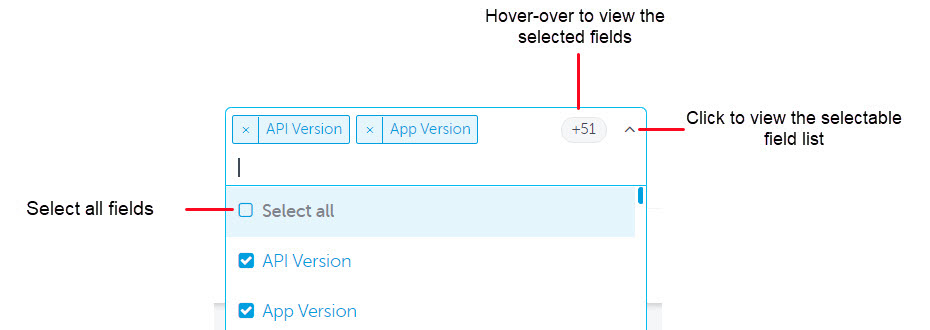
- The most common fields are preselected by default. You can cancel the selections.
- Select optional fields as needed.
- Use Clear all to clear all optional fields.
- We don't send null/empty fields and the associated key. Take this into account when planning your import/parsing processes.
- Select one or more (up to 52 events) or All in-app events.
- The list is populated by event types that have already been recorded. If an event is missing, send an event having this type using a test device.
- Click Save.
The Push API is now active. Conversion data is sent to the endpoint. - Test the endpoint using the procedure that follows.
To test the endpoint:
- Click Send Test.
A test result message displays below the Send Test button.
A test message is sent to the endpoint. If the test fails, ensure that you have allowlisted ZendeskConnect IP addresses.
Note! A timeout mechanism, having a 3-second duration, is used. If ZendeskConnect doesn't get an OK message during this time ZendeskConnect regards this as a message send failure. - Verify that your endpoint received the test message.
View a copy of the message sent.
Set up SKAdNetwork attribution endpoint
Note: Only the admin can make changes to API settings. Team members can view Push API settings.
To add a SKAdNetwork Push API SKAdNetwork endpoint:
- Go to Integration > API Access. Scroll down to the Push API section.
- Select SKAdNetwork as the attributing entity.
- Click Add Endpoint.
Note: You can define one SKAdNetwork endpoint per app. - Select an HTTP method: POST or GET
- Enter the Endpoint URL. If you get the message this URL is not safe, contact ZendeskConnect support.
- We don't send null/empty fields and the associated key. Take this into account when planning your import/parsing processes.
- Click Save.
The Push API is now active. Data is sent to the endpoint.
Additional procedures—managing endpoints
Change an endpoint
Note: Only the admin can make changes to API settings. Team members can view Push API settings.
 To modify endpoint settings:
- Go to Integration > API Access. Scroll down to the Push API section.
- Locate the endpoint to be modified.
- Make the modifications.
- Click Save.
Delete an endpoint
Note: Only the admin can make changes to API settings. Team members can view Push API settings.
To delete an endpoint:
- Go to Integration > API Access. Scroll down to the Push API access section.
- Click Delete endpoint.
- Click Save.
The endpoint is removed.
Troubleshooting, traits, and limitations
Test message sending fails
If you don't receive the test message and you restrict access to your servers by IP address, ensure that you have allowlisted all of the ZendeskConnect IP addresses.
Duplicate retargeting in-app events
Retargeting in-app events are duplicated when a purchase event takes place as part of a retargeting campaign during the UA re-engagement window. This is done to attribute revenue to both the UA media source and the retargeting media source.
You will only get duplicate events if you have enabled both:
- Install in-app events
- Retargeting in-app events
Identify and deduplicate in-app events
In-app event message selection is disabled
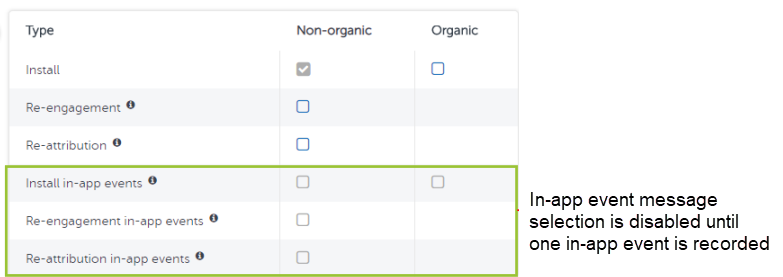
- In-app event messages can only be selected after one in-app event has been recorded.
- Use a test device to generate an in-app event, or use the S2S API to do so manually.
Missing push messages and CloudFront
Are you using Amazon CloudFront as your endpoint? If so, check if CloudFront is rejecting the message with reject code 421. If this is the case, see Choosing How CloudFront Serves HTTPS Requests.
Endpoint error messages
Symptom: The message this URL is not safe displays when you set the endpoint URL.
Action required: Contact ZendeskConnect support; include the app ID, endpoint URL, and a screenshot of the error message.
Traits and limitations
| Trait | Remarks |
|---|---|
| Ad networks | Not available |
| Agencies | Not available |
| App-specific time zone | Supported |
| App-specific currency | Supported |
| Size limitations | Not applicable |
| Organic | Yes |
| Non-organic | Yes |
| Data freshness | Continuous |
| Historical data | Not supported. To get historical data use Pull API. |
| Team member access | Team members can view Push API settings but can't make changes. |
Comments
0 comments
Article is closed for comments.