
Every ZendeskConnect account comes with a set of standard objects. These standard objects include Contacts, Deals, and Accounts. With these objects, you have associated standard fields and custom fields. These fields let you capture additional information about your contacts, deals, and accounts so you can manage your business data.
If you need additional objects outside of what we offer, you can create your custom objects or import custom objects from a supported app integration. This kind of flexibility lets you model and manage your data in a way that reflects your unique business.
Take note
- All ZendeskConnect plans have access to custom objects. Apps and integrations can sync custom objects to your ZendeskConnect account
- Enterprise plan customers can create their custom objects via the API
- This iteration of custom objects can only be associated with the Contact standard object, where each custom object record can only be associated with a single Contact (a contact can be associated with multiple custom object records)
What is a custom object?
A custom object is a schema that defines a set of related fields in a database. You can also think of it as a category bucket that uses object-related fields to store your data. ZendeskConnect offers standard objects (Contacts, Deals, Accounts) and custom objects.
Once a custom object is created in your ZendeskConnect account, that object will appear in a block on all contact profile records. Each new object will have a tab in this block. The block will only display up to five tabs. If you have more than five custom objects synced to your account, you’ll see an overflow menu where you can click to view them.
If a contact is associated with a custom object instance, a row or record will appear in the object block. This record will contain object-related fields and field values. Rows are displayed in descending order based on Created Date. The information contained here is for informational purposes only. It is not possible to sort rows or edit these fields from your ZendeskConnect account.
If a contact is not associated with any object records, the block will remain blank. It is not possible to hide or remove blank object blocks from a contact’s profile record.
Once a custom object is created in your account, you’ll have access to two new automation triggers (object created and object updated) and the ability to personalize automation emails with object-related information.
How are custom objects created?
Custom objects can be created through an integration or the API.
Custom objects through an integration
If you’re using a 3rd party app or integration, that app or integration can sync custom objects on the contact level. This is available to customers on all plan levels.
For examples of how this works, check out the Salesforce Opportunity objects or Zendesk Support objects documentation.
Custom objects through the API
If you are a customer on the Enterprise plan, you can define and implement private custom objects by creating a schema using our Custom Objects API. For more information, please visit Custom Objects in our Developer Portal.
Use custom objects to trigger automations
Each custom object has two automation triggers. The two new triggers are:
-
[Custom object] Created
The related contact is pulled into the automation whenever a new record is created for the object. -
[Custom object] Updated
The related contact is pulled into the automation when a synced record is updated.
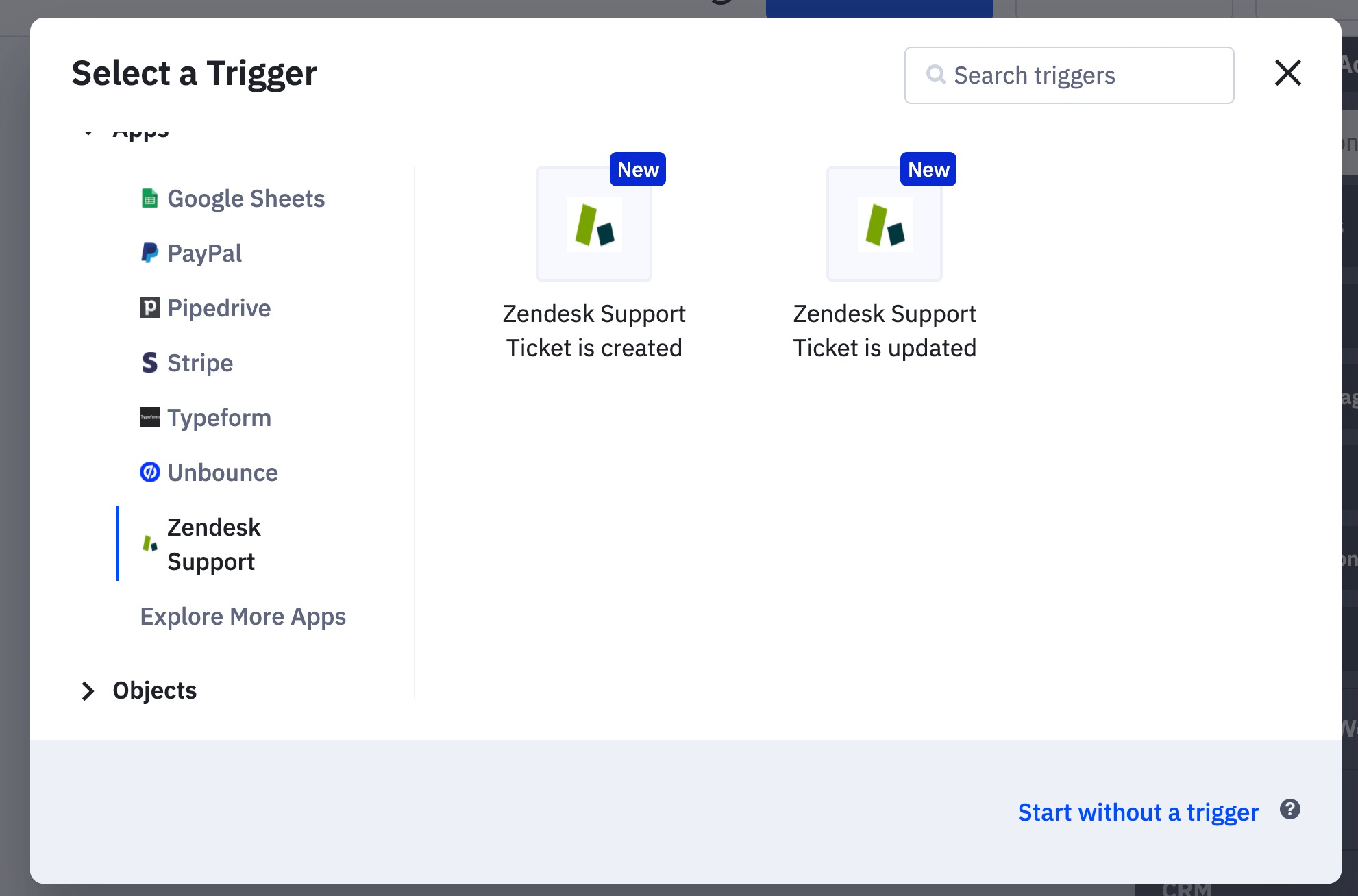
If it’s a private custom object created through the API, the trigger will appear under the “Objects” section of the trigger modal.
If the custom object was synced through an integration, it will appear in the “Apps” section of the trigger modal.
With custom objects, you can only use one trigger for your automation. If the automation already has a trigger of any type, you cannot add a Custom Object trigger. If an automation already has a Custom Objects trigger, no other triggers can be used. However, you can still manually add contacts to the automation.
Add a filter to your Custom Object trigger
Adding a filter to your Custom Object trigger gives you more control over who can enter your automation. For example, you can trigger an automation to run when a new ticket is created for the Zendesk Support custom object and if the ticket was created on a specific date and time:
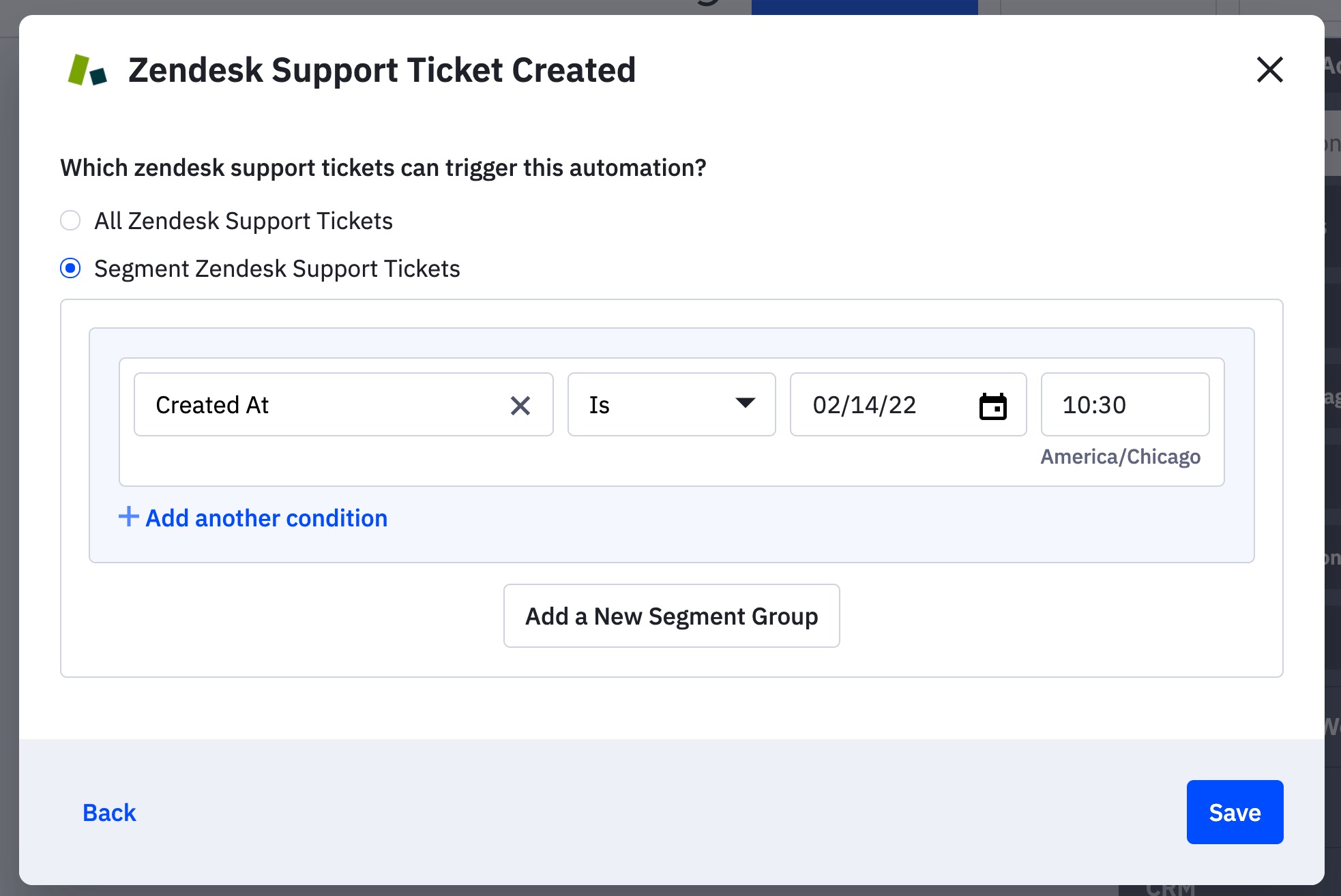
To use this option:
- Add the Custom Object trigger to your automation.
- A modal window will appear. Click the “Segment” option.
- Use the dropdowns to create the segment.
- Click the “Save” button.
Note that you can add multiple conditions or add a segment group.
For a step-by-step walkthrough on adding a trigger to an automation, visit How to create a new automation.
Use custom objects to personalize emails
Once a custom object syncs to your account, you can use the synced custom object fields to personalize any campaign sent from an automation. These personalization options are located under the “Custom Objects” section in the “Add a personalization” modal.
These fields are not available to use in one-to-one emails or campaigns sent from the Campaigns tab in your ZendeskConnect account.
To learn more about email personalization, visit How do I insert personalization tags into my campaigns?
Are custom objects available in the floating segment builder?
No, custom object data are not available in the floating segment builder. This means you cannot use these custom objects to create list segments, advanced searches, conditional content, goals, If/Else automation forks, or lead scores.
Comments
0 comments
Article is closed for comments.