
At a glance: Send attribution data from ZendeskConnect to venedash. ZendeskConnect can send venedash both install and in-app events data.
venedash integration setup
- If you currently have an integration with ZendeskConnect contact us at partners@appsflyer.com
- If you do not currently have an integration with ZendeskConnect, complete the ad partners registration application.
To enable the integration with ZendeskConnect:
- In ZendeskConnect, go to Configuration > Integrated Partners and select venedash from the partners list.
- In the Integration tab, enable Activate partner.
- Go to the Attribution Link tab and generate an attribution link with the following mandatory parameters:
Note that the pid parameter is filled by the Appsflyer team.ZendeskConnect parameter venedash parameter Description &clickid=
{#ydrid#}
Request ID of each user session
&af_siteid=
{#ydr_pid#}
ID of the affiliate who promotes the offer
&advertising_id
{#android_adv#}
Android device ID
&idfa=
{#iosidfa#}
iOS device ID
Example:
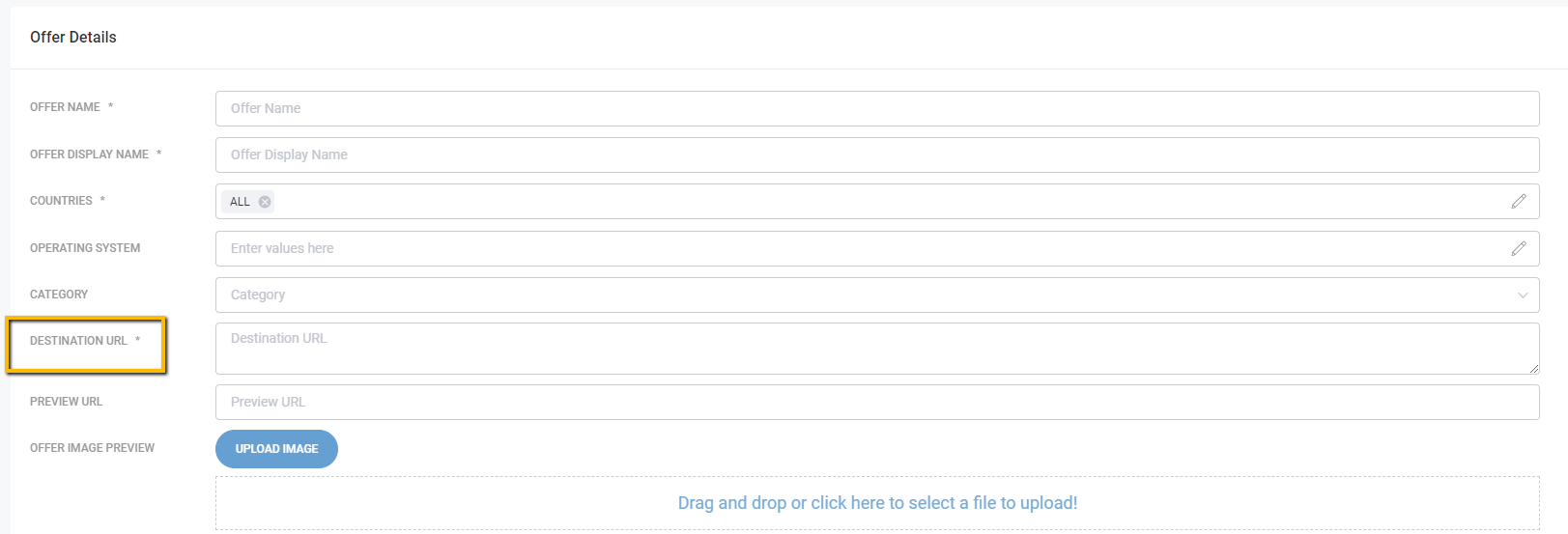
Learn more about attribution link parameters.http://app.appsflyer.com/com.appsflyer?pid=mediaName_int&clickid=#ydrid#&af_siteid=#ydr_pid#&advertising_id=advertising_id&idfa=#iosidfa#">http://app.appsflyer.com/com.appsflyer?pid=mediaName_int&clickid=#ydrid#&af_siteid=#ydr_pid#&advertising_id=advertising_id&idfa=#iosidfa# - In venedash, create an offer and paste the ZendeskConnect attribution link in the Destination URL field.
Comments
0 comments
Article is closed for comments.